SSH
SSH is a powerful way to connect and work on remote network *nix systems, such as clusters, file servers and workstations. SSH clients exist for all major platforms and are available by default.
This document describes the most common usages of SSH primarily via the CLI (Command Line Interface is the main interface used in a shell via a Terminal application).
Accessing a server
Note
The following example username and server will be used:
- username: jane with DTU username jado
- server FQDN (Fully Qualified Domain Name): linuxterm1.compute.dtu.dk (IP: 130.225.68.87)
Using SSH to connect to linuxterm1 from a private PC is done using this command (excluding the prompt):
jane@private-laptop:~$ ssh jado@linuxterm1.compute.dtu.dkjado@dtu-laptop:~$ ssh linuxterm1Notice the username in the shell prompt in the above examples. When connecting from the private PC it is necessary to specify username@host since the local username is different from the DTU username.
When the local username is the same as the DTU username, it can be omitted since it is implied when connecting to a host. With this in mind, the rest of the examples will not include the prompt and assume that the DTU username is used.
Tip
When connected to the wired DTU Compute network from a Mac or Linux PC, using just the server hostname instead of the FQDN is possible.
Warning
When connecting from Windows always use FQDN, and if using PowerShell always use dtu_username@FQDN as Windows will prefix your implied username so it becomes win\dtu_username causing login to fail.
When connecting to a server for the first time you will be met by this message:
The authenticity of host 'linuxterm1.compute.dtu.dk (130.225.68.87)'
can't be established. RSA key fingerprint is SHA256:V3cpkC2OGGSw7IlYM778myAs0P0vGk5Wkp31lM/5aNw.
Are you sure you want to continue connecting (yes/no/[fingerprint])?
Type yes and press Enter, and enter your password when prompted for it. You are now logged in to the remote server.
Copying files to/from a server
To copy files through the SSH protocol, commands such as scp and sftp (both part of the SSH tools) or rsync and other (GUI) tools can be used. The following examples will use scp as it is available by default.
Copy a single file from the current working directory on the local machine to a specific directory on a server with this command:
scp file.zip linuxterm1.compute.dtu.dk:/nobackup/jado/Copy multiple files from different directories on the local machine to the user’s home directory on a server. Omitting a directory on the destination defaults to $HOME. Also notice the use of both absolute and relative paths on the source side:
scp /tmp/file.zip Documents/paper_*.pdf linuxterm1.compute.dtu.dk:Copying a directory recursively from a server:
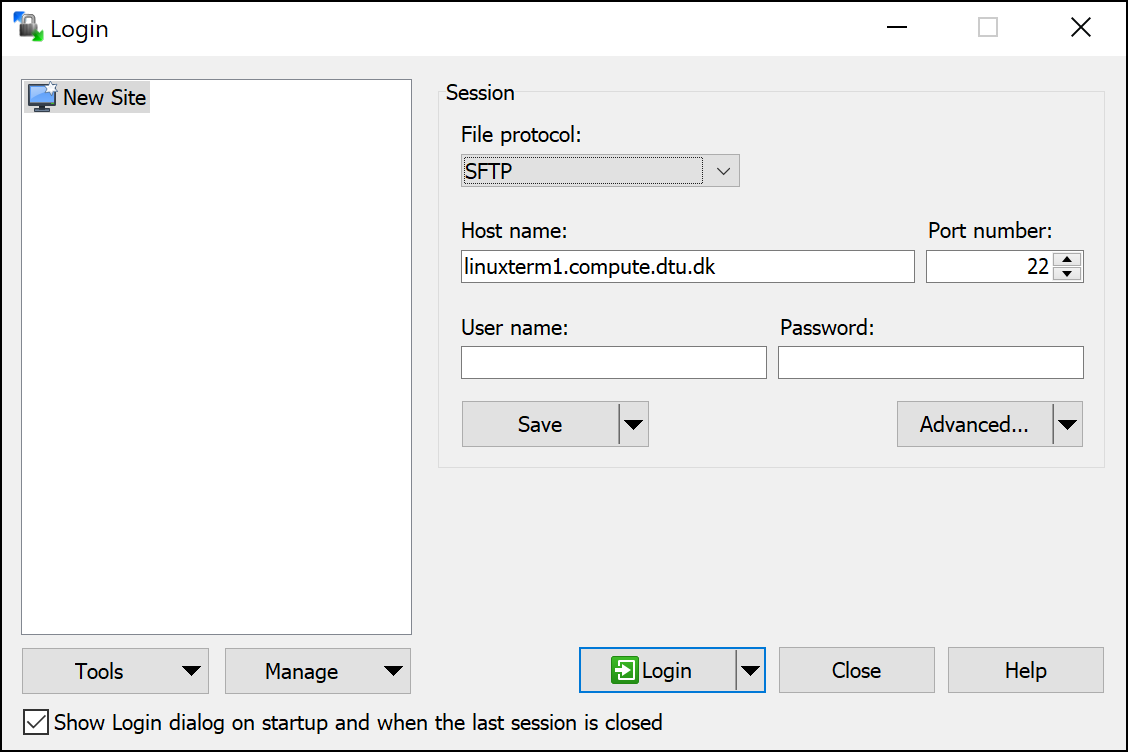
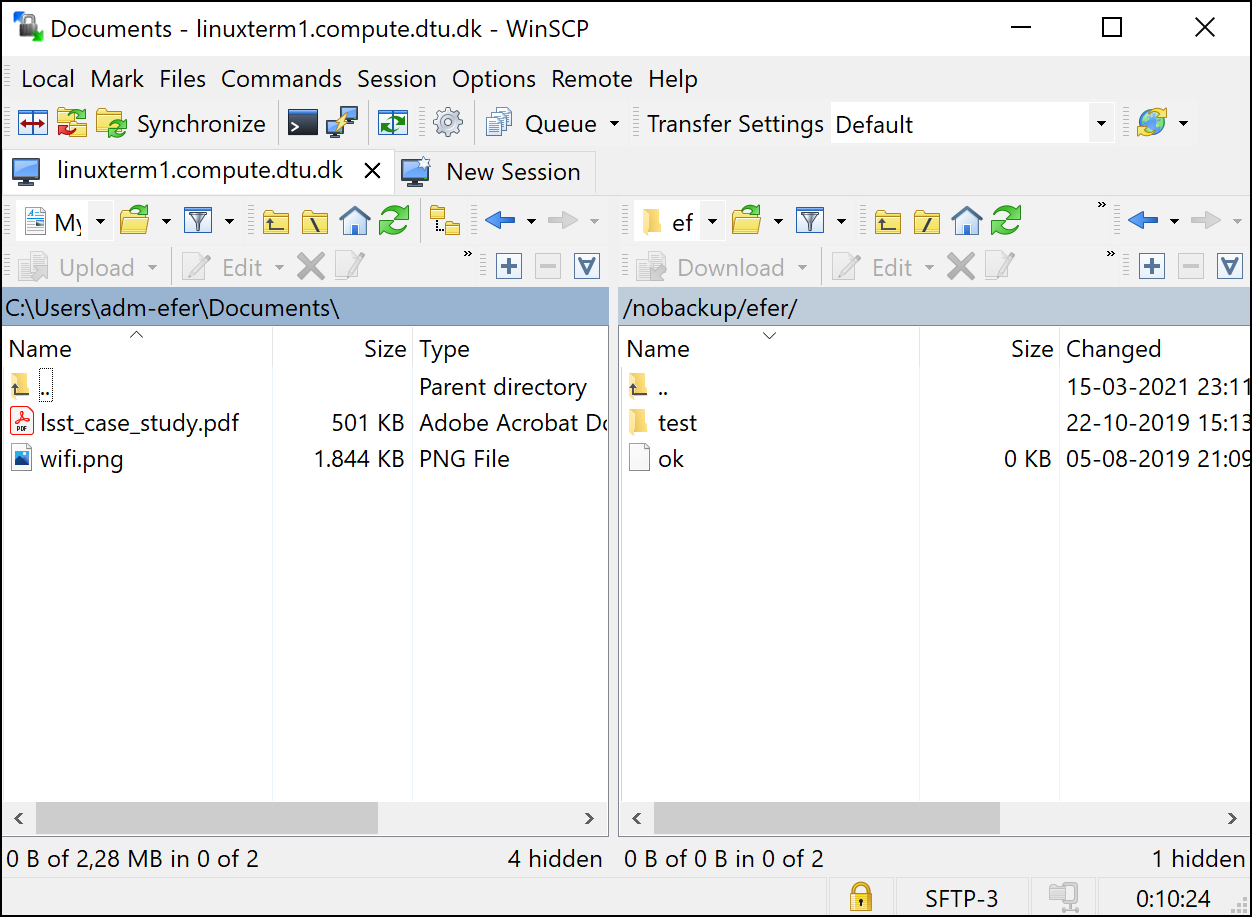
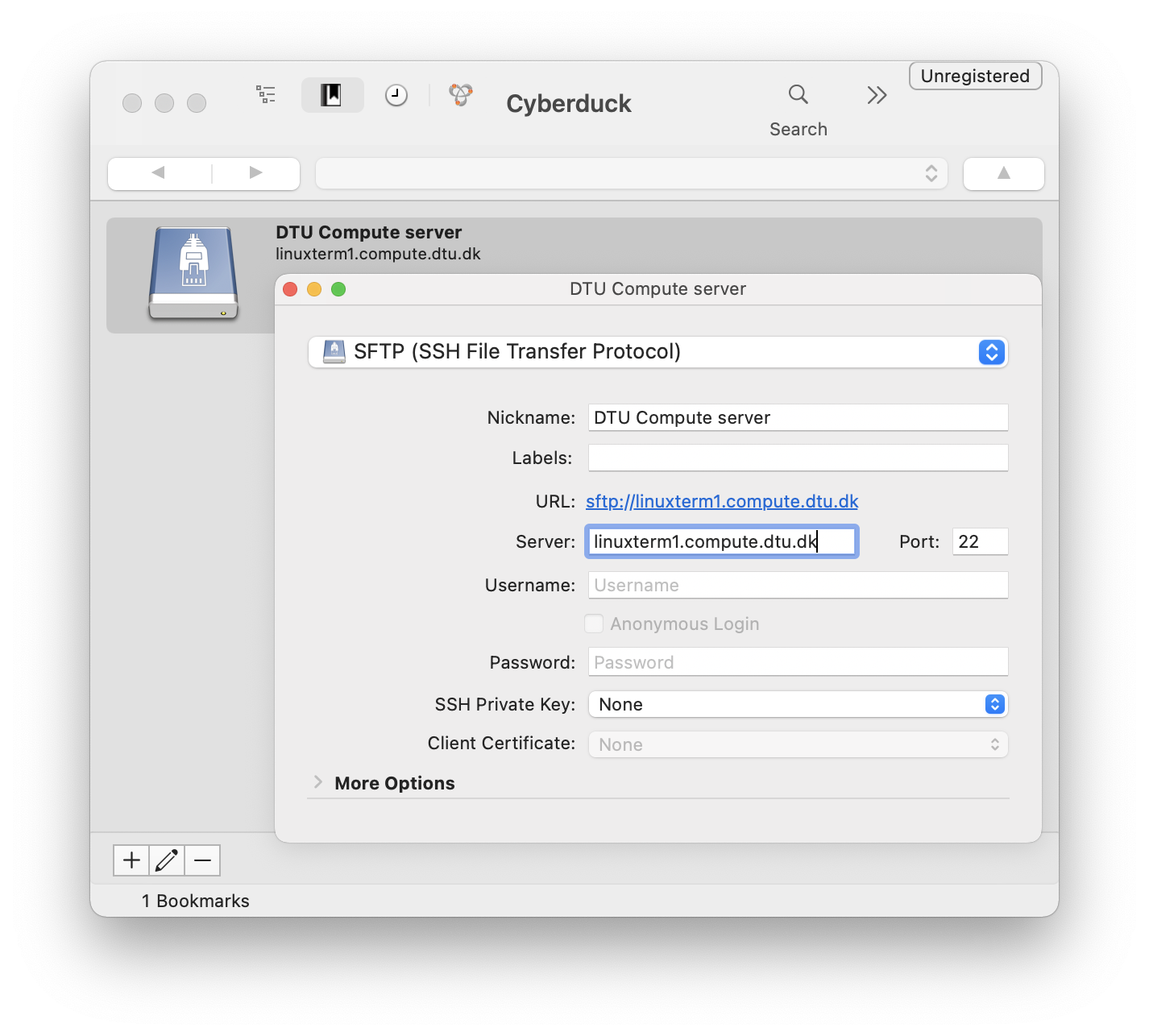
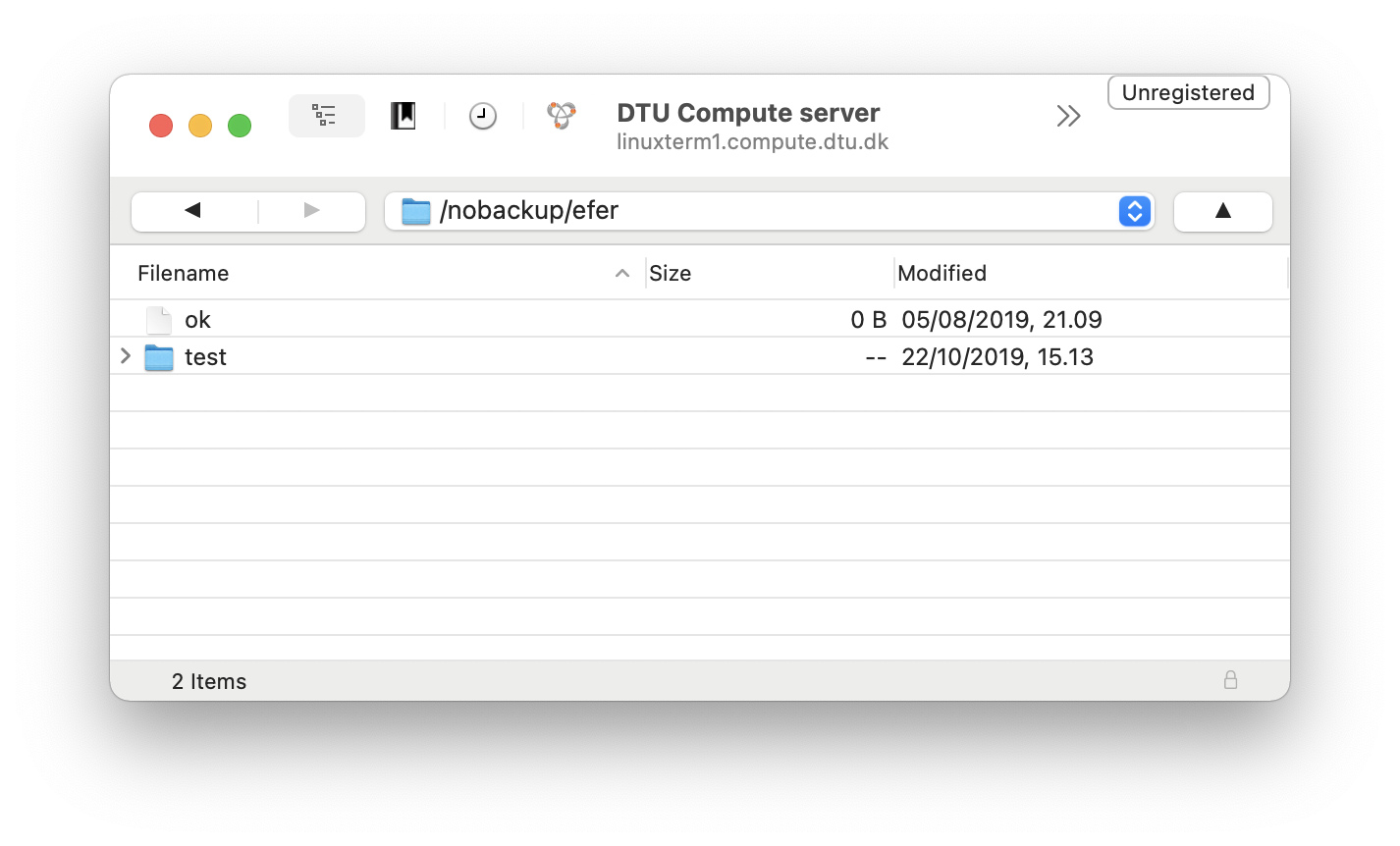
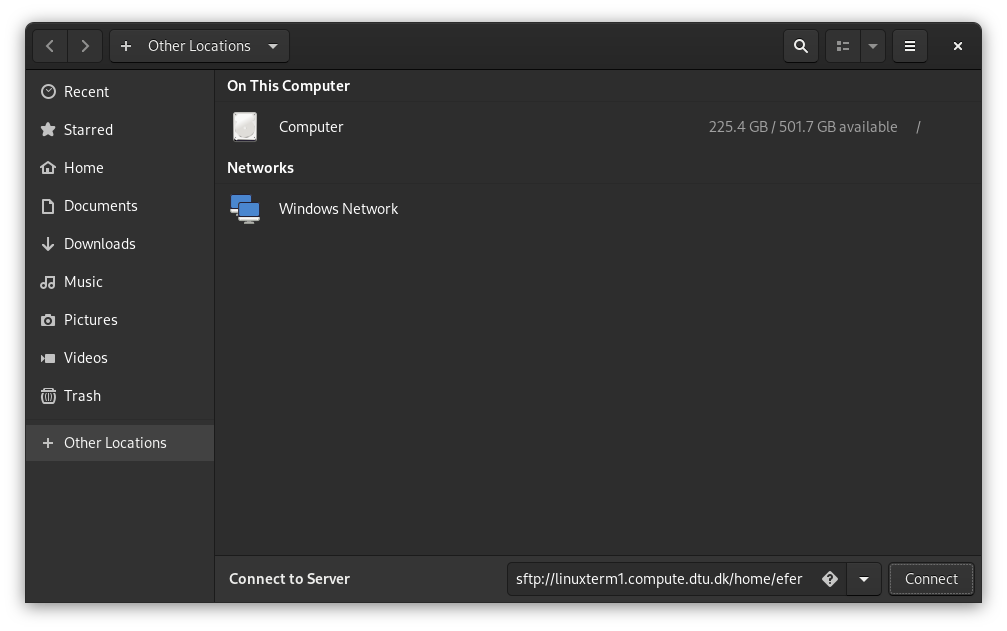
scp -r linuxterm1.compute.dtu.dk:/nobackup/jado/csv_dir ~/Documents/Copying using a GUI
When working with files it is sometimes helpful to work visually in a file manager-type application.
SSH Public Key authentication
When working on specific servers regularly it can make sense to set up passwordless public/private SSH keys on your local machine, and copy the public key to the remote host(s). This public key is also useful to set up in your GitLab profile, to be able to push and pull from your repositories without entering your password every time. Another use case is running automated scripts against remote servers.
Caution
Please be aware and take care of your private keys, as anyone who gains access to them has passwordless access to any systems where you’ve distributed your public keys.
To create an SSH key pair use this command:
ssh-keygenPress Enter 3 times for a passwordless key pair, located in:
$HOME/.ssh/id_ed25519
$HOME/.ssh/id_ed25519.pub
The file id_ed25519.pub is your public key that you can share with other systems, and id_ed25519 is the private key.
To copy this id to the target host, type this command:
ssh-copy-id linuxterm1SSH Tunneling
To access applications exposing network ports that are not opened on the server or firewall, it is possible to forward these ports through SSH to a client machine. A prime example of this is using Jupyter Notebook running on a remote server while working in the client’s browser.
Given that the default Jupyter Notebook port is 8888, the SSH command to log in is:
ssh -L 8888:localhost:8888 linuxterm1.compute.dtu.dkOnce connected, assuming your environment has Jupyter Notebook installed, start it with:
jupyter-notebook --no-browserIn the output will be a URL such as:
http://localhost:8888/?token=c5ad8caab855a7acaa172e376879eaeb9eb6d39b3912d15cOpen that link in your browser and you are connected to the remote Jupyter Notebook server.
OpenSSH server on Windows
Besides the SSH client (ssh.exe) it is also possible to run an SSH server on Windows, if a remote CLI connection to that OS is needed. It can be added via Settings → Apps → Optional features or by using Windows PowerShell (Run as administrator) with these commands:
Get-WindowsCapability -Online | ? Name -like 'OpenSSH*'
Add-WindowsCapability -Online -Name OpenSSH.Server~~~~0.0.1.0
Start and enable the daemon using PowerShell (Run as administrator):
Start-Service sshd
Get-Service sshd
Set-Service -Name sshd -StartupType 'Automatic'