GitLab
To use git for your own projects and team projects, DTU Compute provides a GitLab instance with all the benefits it offers. Primarily a place for your repositories, other features are available such as public runners and container registry.
Login with your DTU credentials here:
There are two login tabs:
- DTU Compute Login - For users with their primary affiliation at DTU Compute (employee or guest)
- DTU Login - For users from other departments and general students
Add your public keys
To access your private repositories, add your public SSH key to your GitLab account.
If you don’t have an SSH key, read about how to set it up here.
The file id_ed25519.pub (or id_rsa.pub if it is an older key) is your public key that you can share with other systems, including DTU Compute’s GitLab.
To add your public key to GitLab, follow these steps after login:
- In the top-right corner click your user icon
- Click Edit profile and on the left-hand panel click SSH Keys
- Follow the instructions from here
Give access to other users
To share a repository with other users, the user you want to add has to login to GitLab first. Then you can find and add them as a member of your project.
- Select the project you want to share
- In the left-hand panel select Manage -> Members
- Click the Invite members button and search for the username
Instructions for collaboration with a user from outside DTU
Users can get access to GitLab service at DTU Compute only if they have a DTU account. Therefore, if you’d try giving access to an external person through your GitLab project/group settings, it will not work.
- Create a guest account for the external person by logging in to guest.dtu.dk with your DTU credentials.
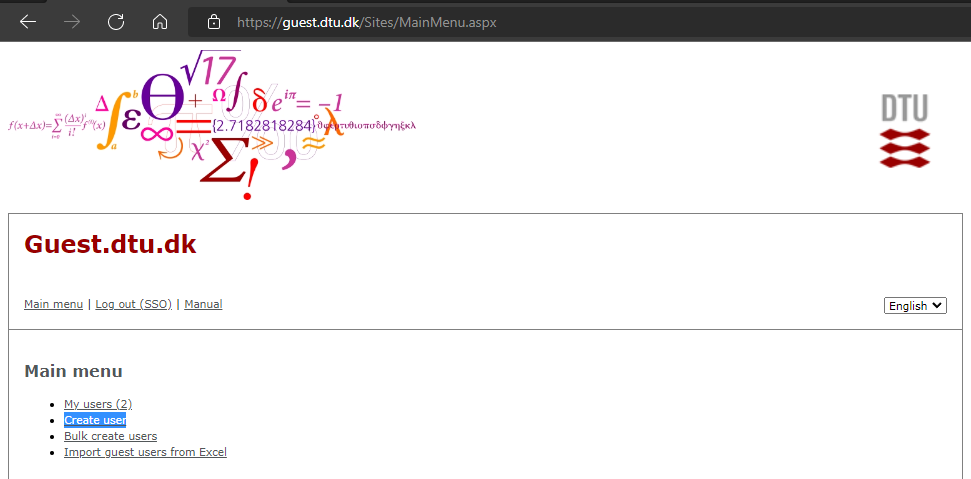
- After logging in, you should see the options as in the figure below. Choose Create user.
- You should see the form below appearing in the next screen. The username must consist of 8-9 characters (only letters and digits are allowed). It is important to enable access to DTU Wireless system for GitLab to be able to discover the new user.
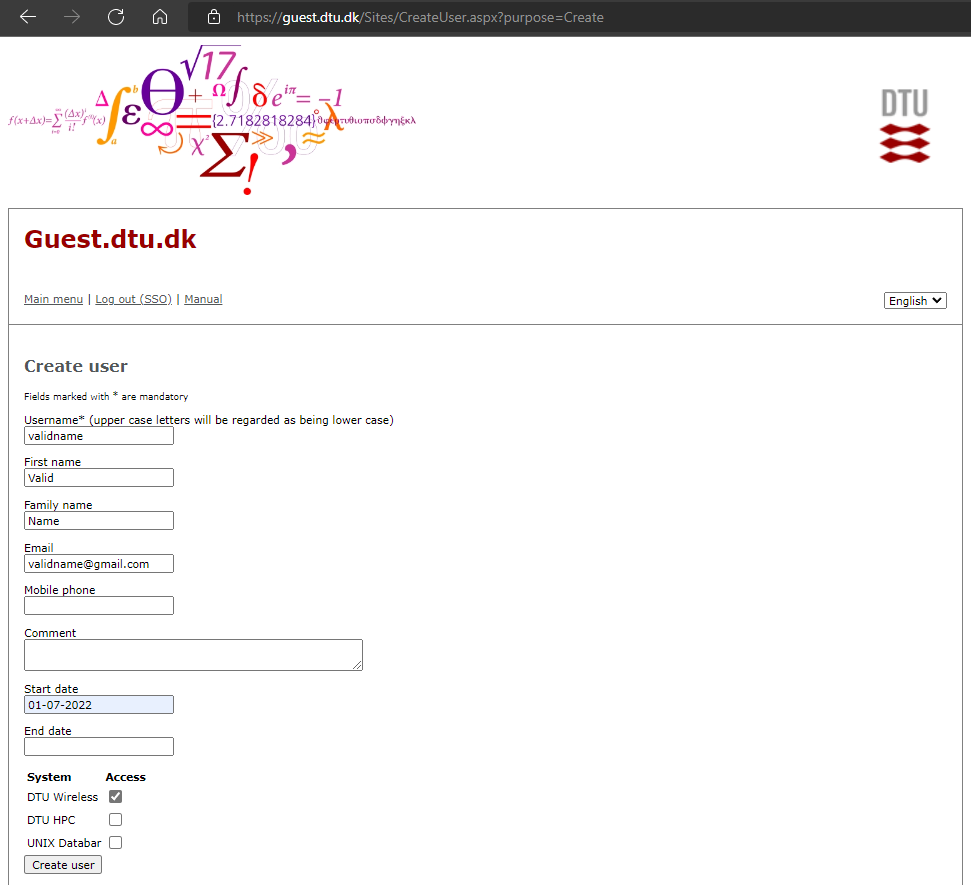
After clicking the Create user button, you should see the green success message and the information about the user appearing below the search box. You can edit, delete, and change the password for users. Note that guest users are not able to change credentials themselves and you must do it for them.
After a certain amount of time (around 1-2 hours), notify the owners of the guest accounts that they should be able to sign in to GitLab with their new credentials at the GitLab log-in page, using the DTU Login tab. The credentials can be sent by email when changing the user’s password.
You should now be able to share your group/project with your guest users by going to Manage -> Members and clicking the blue Invite members button. The search box will appear where you can search guest users by their usernames in the usual way.
Project Visibility & License
New repositories are by default set to be private which means that only you, and members that you allow, are able to see and work with the repository. This can be changed to either internal (lab.compute.dtu.dk members) or public (visible to the whole internet). To change the visibility of a repository:
- Select Settings -> General
- Expand Visibility, project features, permissions and change Project visibility
Important
Please be aware that public repositories can be found in the
/public access directory (https://lab.compute.dtu.dk/public). If you
have projects here that are not meant to be public, change the
visibility of your repository!
If you do want your project to be public, we ask that you add a license. This can be done easily by clicking the Add license link beneath the project name in your project homepage.
Mirroring repositories
It may make sense to mirror a repository to/from an external source such as Github. For instructions read the official documentation
Shared Runners
Available for all projects are currently two GitLab Runners called “DTU Compute shared runner” 1 & 2, for various CI/CD tasks.