OpenVPN
A department hosted VPN server is available as an alternative to Cisco VPN
Note
Students who do not have their primary affiliation with DTU Compute will need to use this VPN to access DTU Compute resources.
Download certificate
Visit https://openvpn.compute.dtu.dk and use your DTU credentials to log in.
Here you will be presented with two options:
- Download new: should be used if you don’t already have a certificate or if you would like to block your previous certificate (revoke your old certificate) and get a new certificate.
- Download current: should be used if you would like to redownload your existing certificate. E.g. if you would like to put it on multiple computers.
Setup
Important
Administrative rights are needed to install for the initial usage of this client. If you don’t have permission to do this, contact IT Support.
- Download the official OpenVPN Client for Windows: https://openvpn.net/community
- Run the setup and follow the installation steps (default installation - no need to change options). Confirm the Windows security messages
- Unpack the downloaded certs zip file and copy the folder to the OpenVPN configuration folder: C:/Users/<username>/OpenVPN/config/
(or this folder: C:/Program Files/OpenVPN/config/) - Run OpenVPN and double-click the icon in the task tray. Use DTU credentials to login
Removing an old config
Delete the openvpn certs folder from where you placed it. The connection is now gone as an option in the OpenVPN GUI.
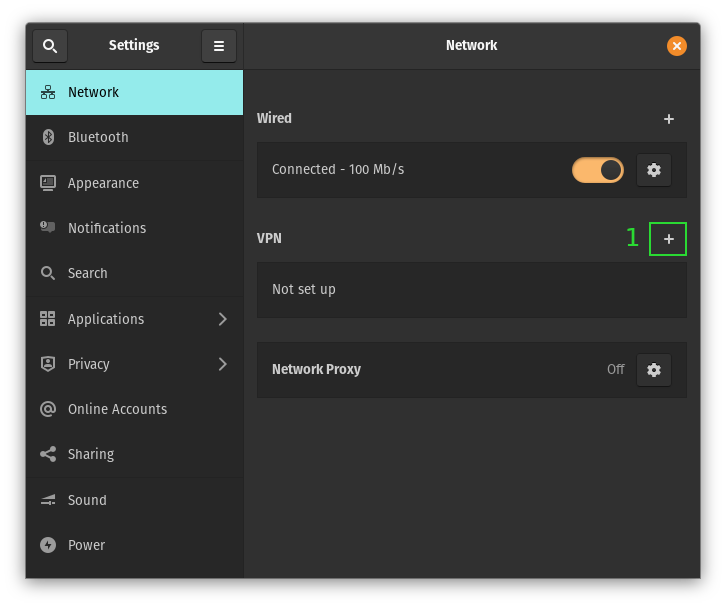
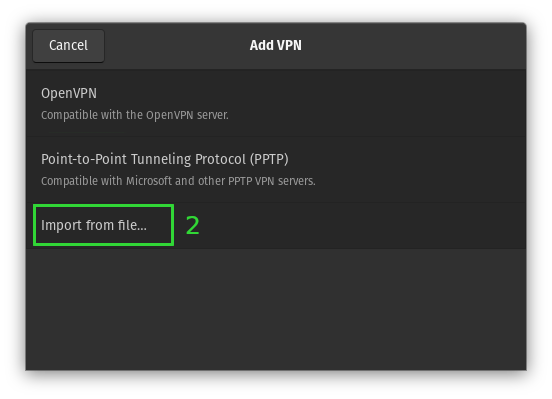
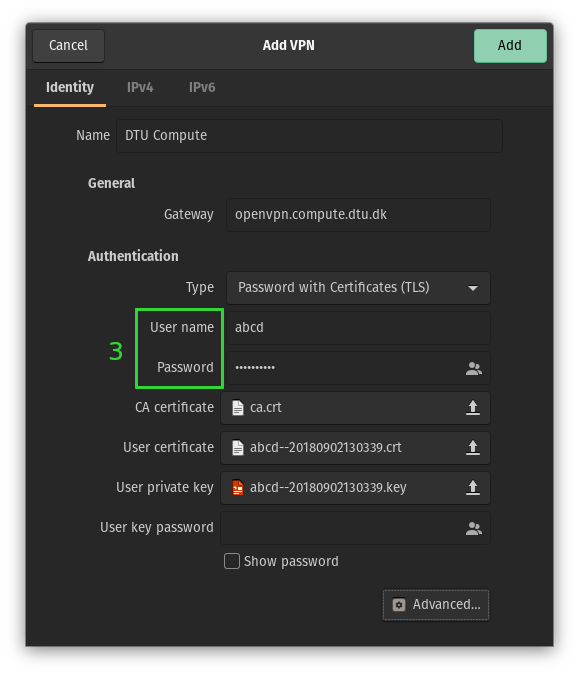
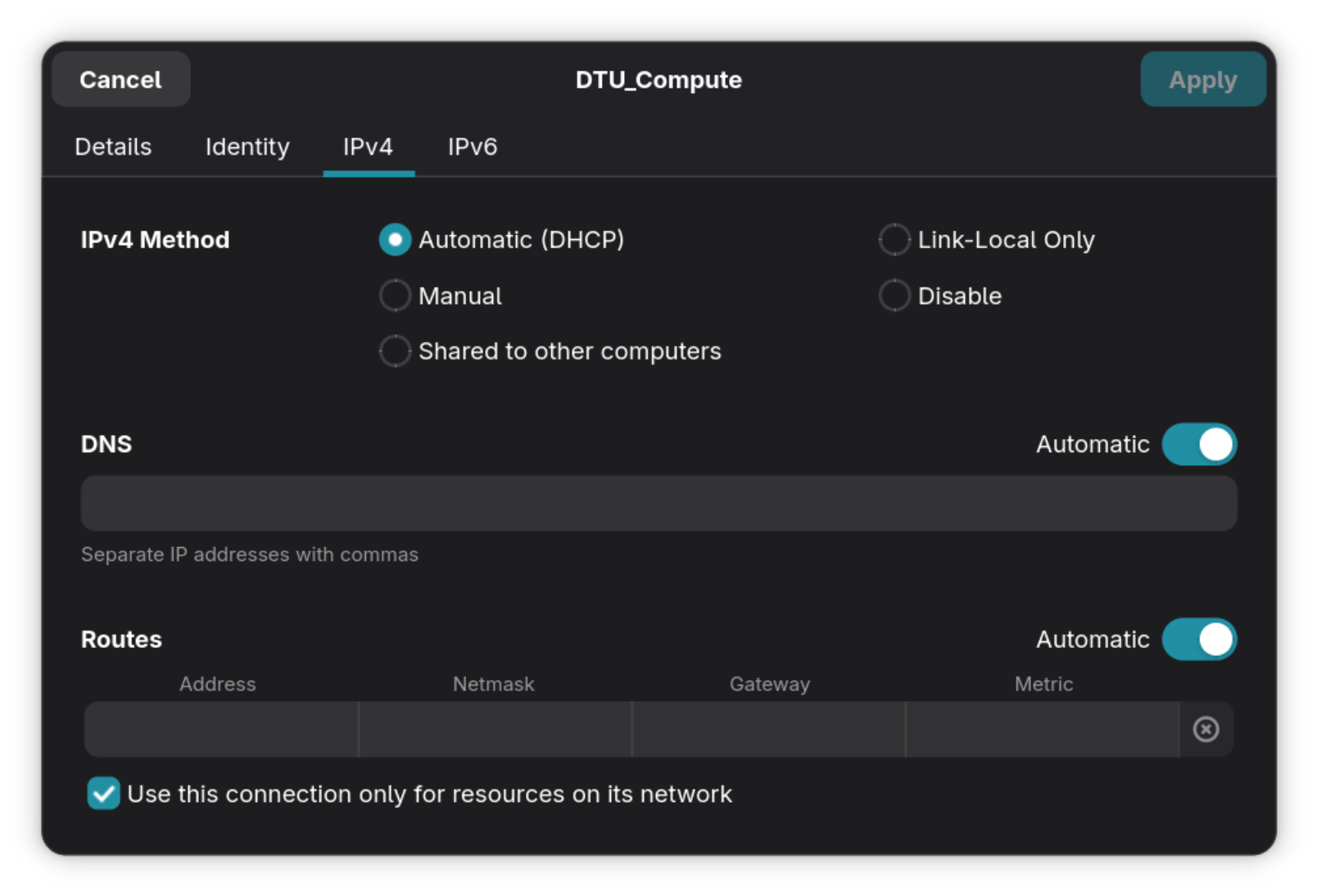
Verify VPN connection is working
After activating the VPN connection, you should be able to access various services within the DTU Compute network.
For example, accessing the following web page should list that Belongs to: DTU Compute (OpenVPN server)