Printing
Printing at DTU Compute is provided by:
- CUPS servers for the Linux/Mac environment
- Microsoft Windows Print server for the Windows environment.
Tip
The naming of the printers follows a naming scheme:
prefix-functionality+location+#
- prefix: When accessing the printers from the Windows domain via “comp-winprint” the prefix is comp- (when accessed from CUPS there is no prefix)
- functionality: cm = Colour Multifunction machine
- location: Building+Room
- #: Sequential letter (a,b,c,…)
Note
Paper sizes are A4 and A3
All printers have scanner functionality as well, and can send to email
Lists of printers at DTU Compute
Building 303B
| Printer name | Model | Location |
|---|---|---|
| (comp-)cm303013a | Xerox Altalink C7120 | 303B/013 |
| (comp-)cm303049a | Xerox Altalink C7120 | 303B/049 |
| (comp-)cm303112a | Xerox Altalink C7120 | 303B/112 |
| (comp-)cm303151a | Xerox Altalink C7120 | 303B/151 |
Building 305
| Printer name | Model | Location |
|---|---|---|
| (comp-)cm305026a | Xerox VersaLink C7120 | 305/026 |
Building 307
| Printer name | Model | Location |
|---|---|---|
| (comp-)cm307073a | Xerox VersaLink C7120 | 307/073 |
Building 321
| Printer name | Model | Location |
|---|---|---|
| (comp-)cm321111a | Xerox Altalink C7120 | 321/111 |
| (comp-)cm321211b | Xerox Altalink C7120 | 321/211 |
Building 322
| Printer name | Model | Location |
|---|---|---|
| (comp-)cm322028a | Xerox Altalink C7120 | 322/028 |
| (comp-)cm322122a | Xerox Altalink C7120 | 322/122 |
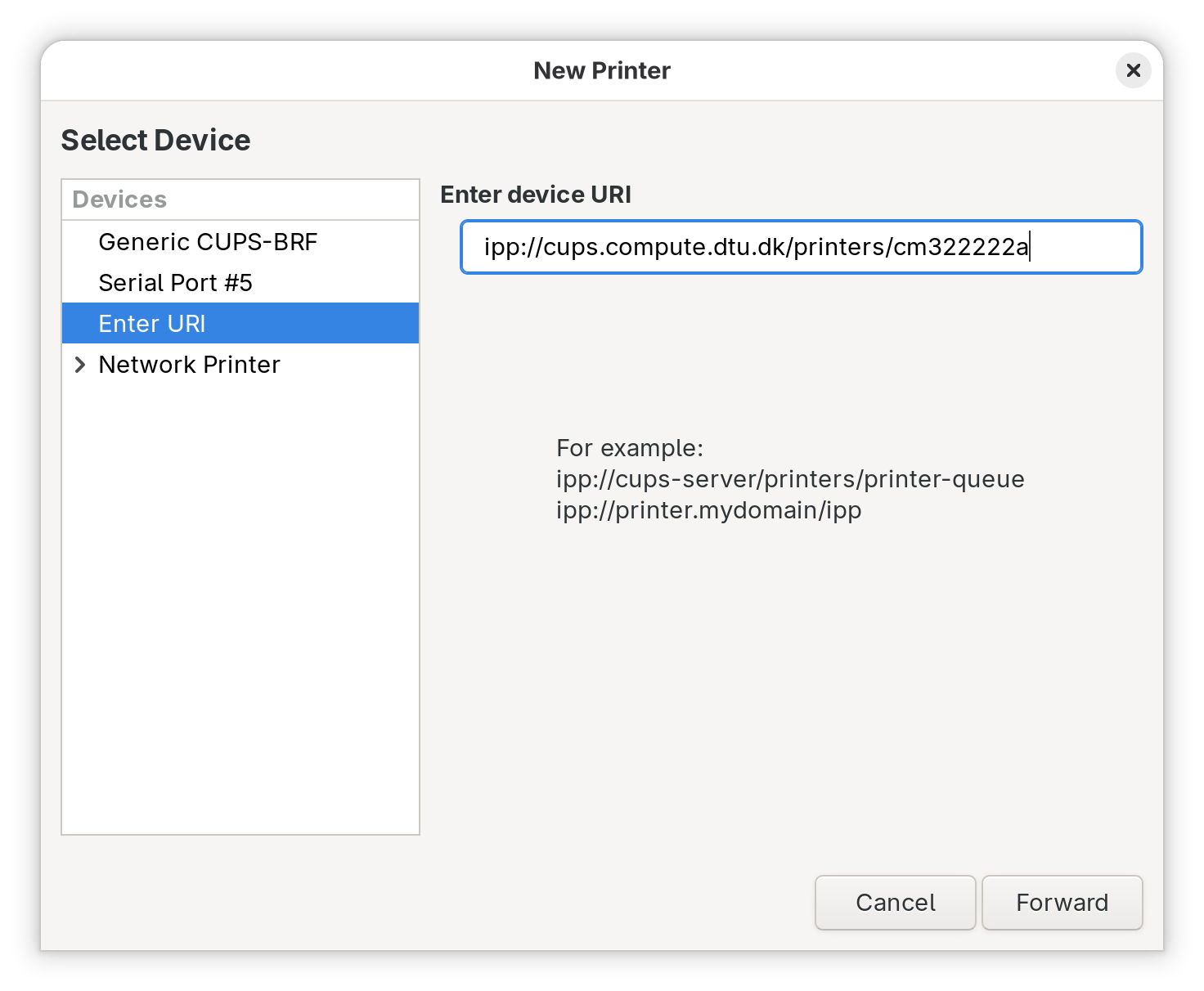
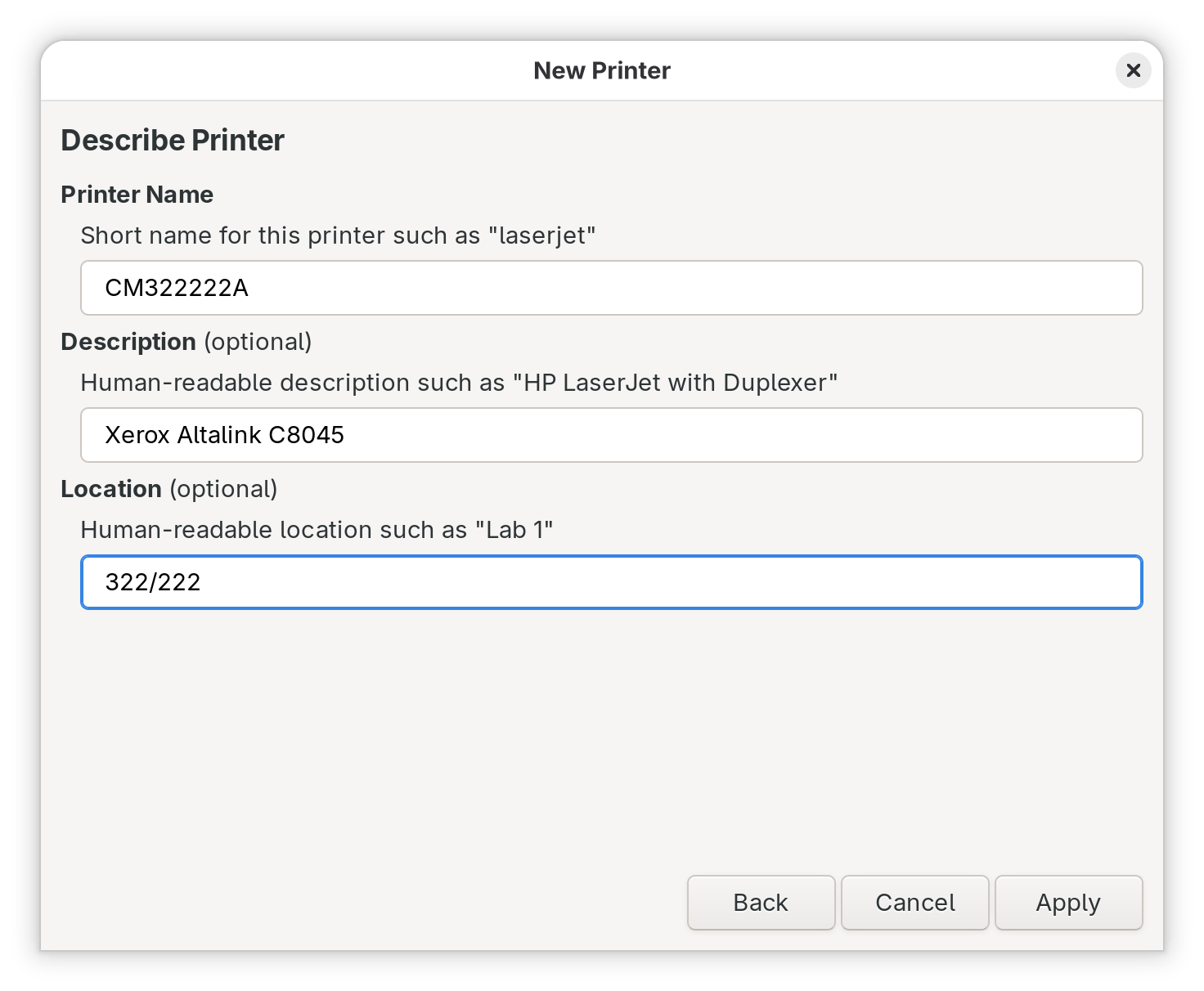
| (comp-)cm322222a | Xerox Altalink C7120 | 322/222 |
Building 324
| Printer name | Model | Location |
|---|---|---|
| (comp-)cm324111a | Xerox Altalink C7120 | 324/111 |
| (comp-)cm324183a | Xerox Altalink C7120 | 324/183 |
| (comp-)cm324211a | Xerox Altalink C7120 | 324/211 |
| (comp-)cm324283a | Xerox Altalink C7120 | 324/283 |
There are more printer destinations defined on the server, but those are not generally available, i.e. they are typically available for dedicated use and/or specific users only.
Configuration
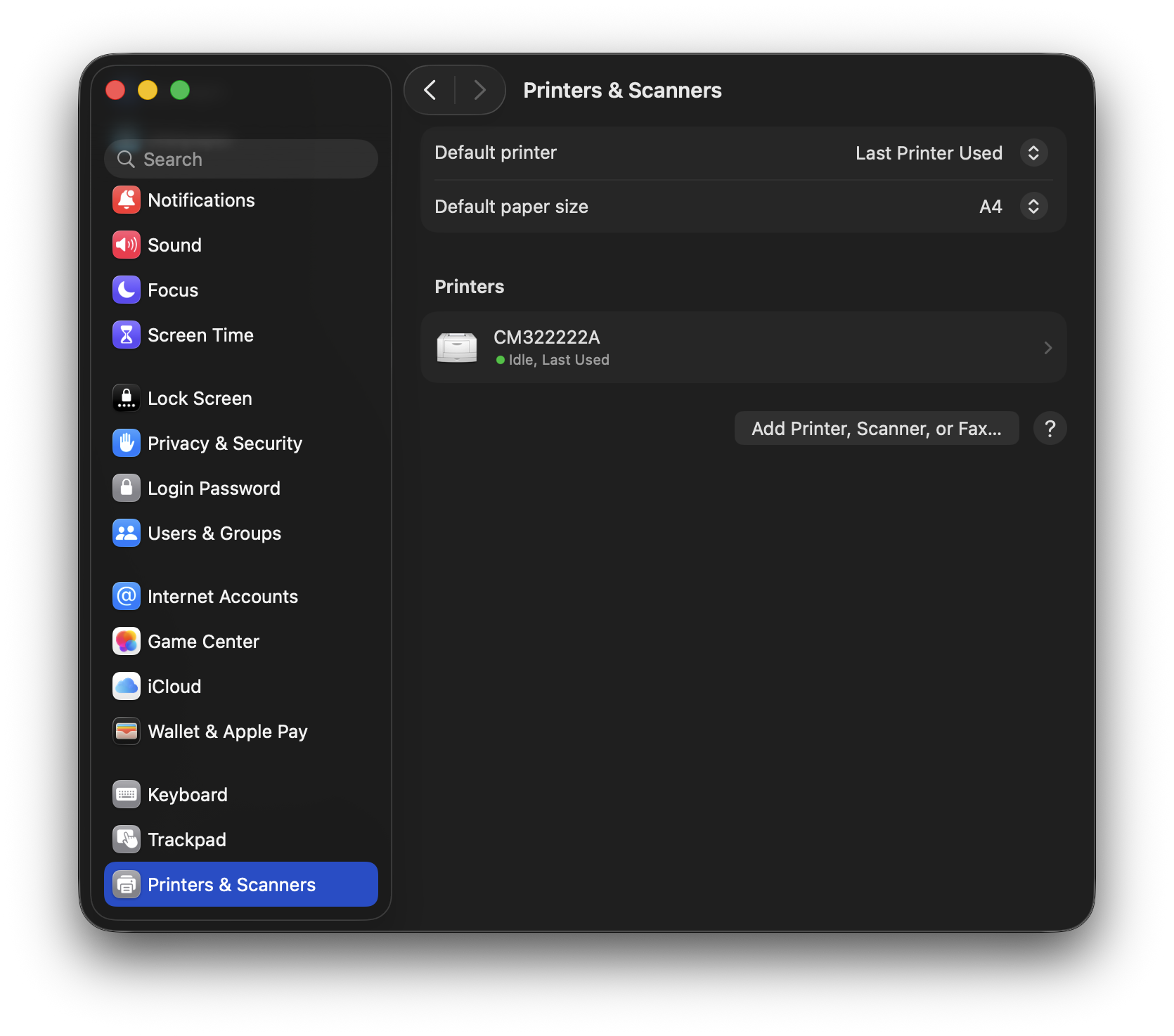
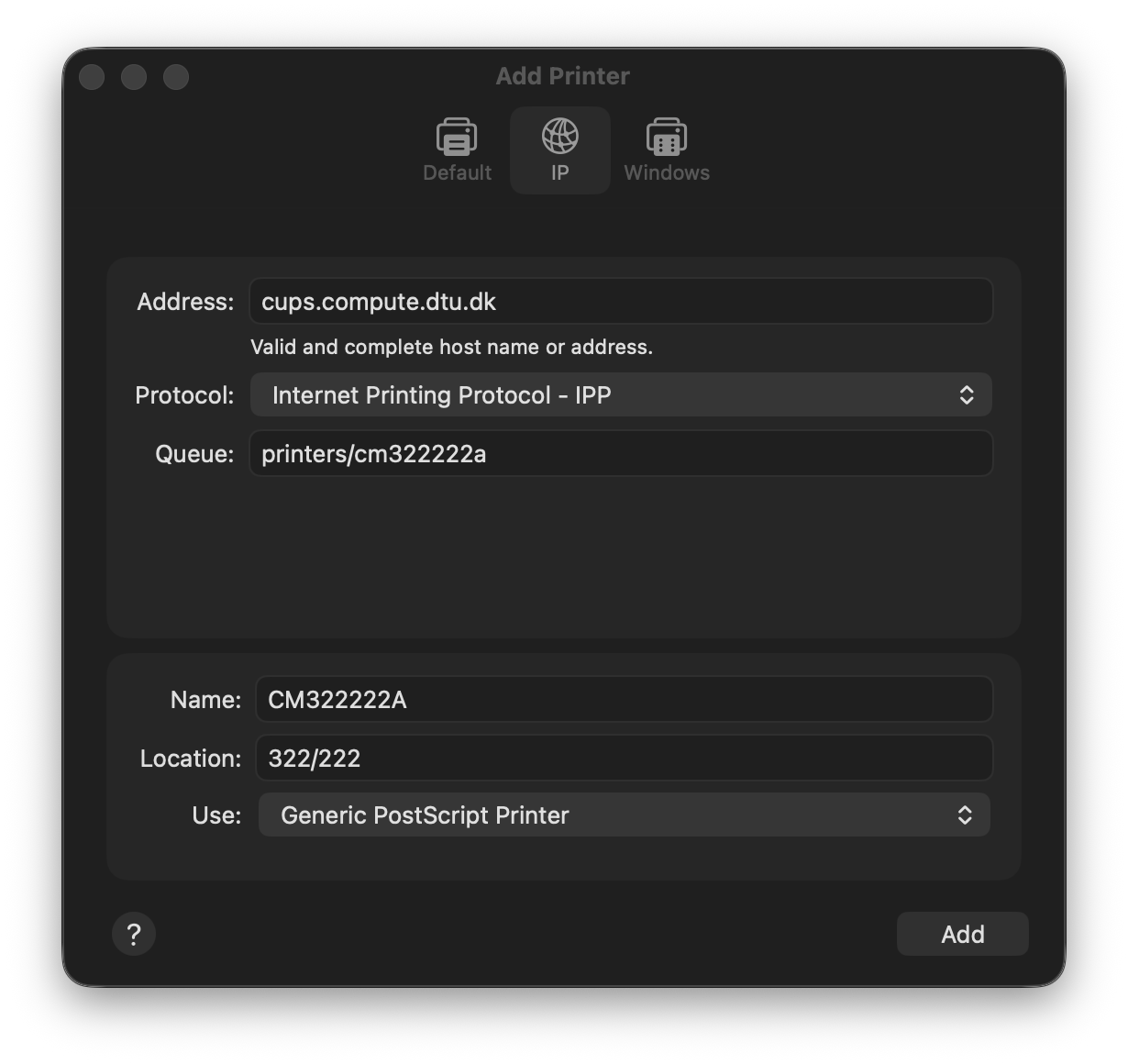
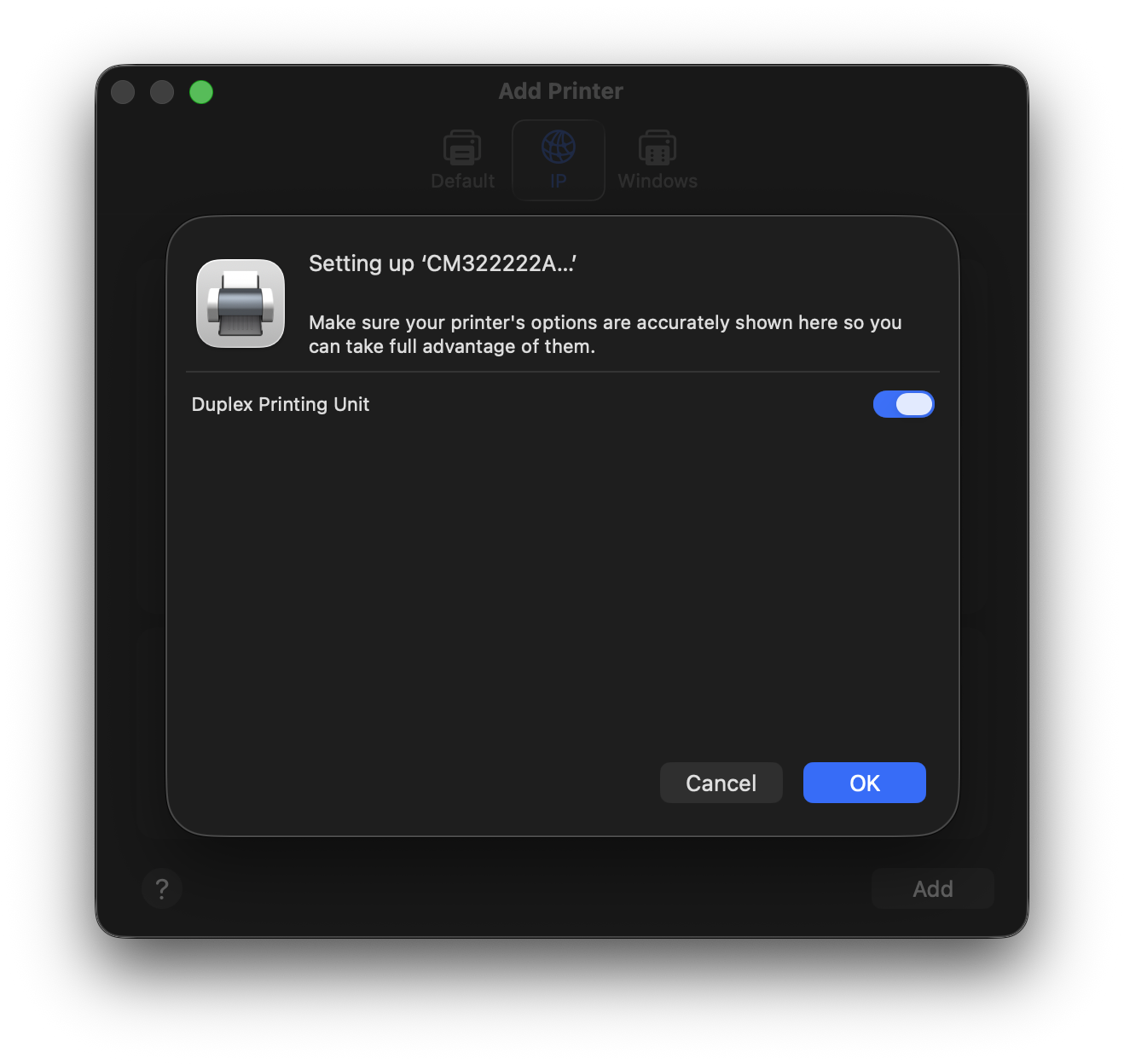
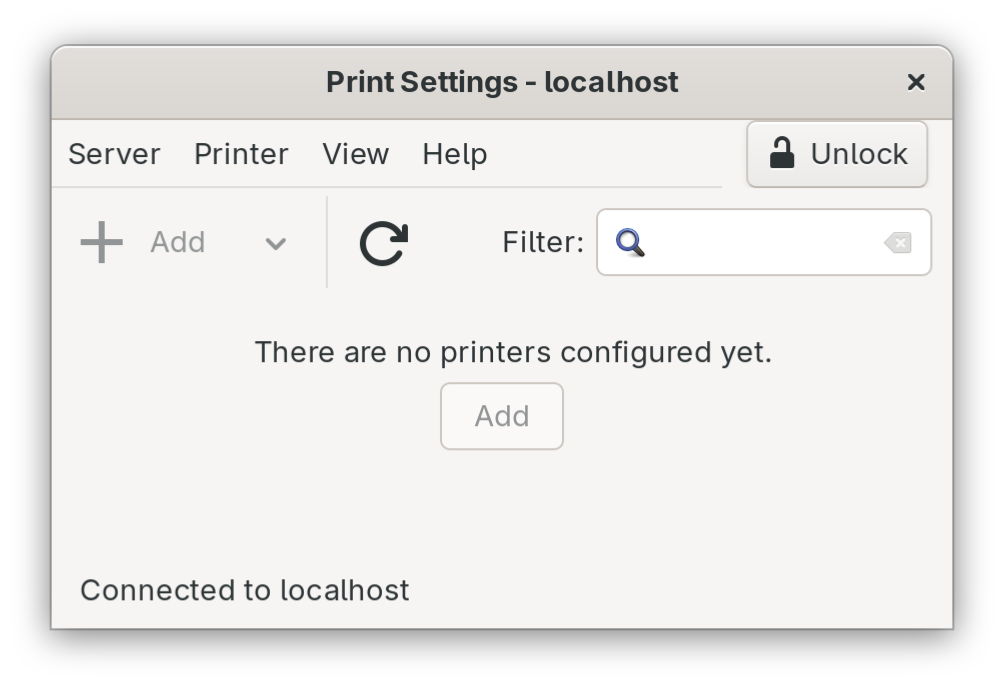
Below are guides for setting up printers on specific operating systems. If you are still in doubt or need further assistance, please contact IT Support.
There is a minor difference in installing printers whether your PC has joined DTU's Windows domain (win.dtu.dk, in short "WIN") or not. Pressing Windows key + Pause/Break key will open System Information. If "win.dtu.dk" is set under Domain, your PC has joined the domain.
How to add a network printer from a Windows computer joined to DTU Windows domain
Go to Start → Run or press Windows Key + R
Type
\\comp-winprint.win.dtu.dkand press EnterFind the printer you want to use in the list shown (Printer names explained above).
Right-click it and choose “Connect”. The printer driver will now be installed - it could take a couple of minutes.
Add a network printer on non-domain computers
This setup will print from an alternative print server (CUPS) and will require that a universal or specific printer driver has already been downloaded and unpacked or already installed on your PC.
- Find the name of the printer you want to add. CUPS printer names do NOT start with comp- (Printer list can be found above).
- Open the Windows guide for adding a printer manually:
Settings → Devices → Printers & Scanner
and click: “Add a printer or scanner” - Click “The printer that I want isn’t listed” (scroll to the bottom)
- Choose “Select a shared printer by name”
- Type in the Printer URL in this format and use the name of the printer found in step 1:
(remember to remove comp- from the name)
- After clicking Next, you will be prompted for the printer driver files on your PC.
- Click on Have Disk… then click Browse and go to the location of the extracted driver folder
- Select the universal/global PCL6 driver (i.e. Xerox Global Print Driver PCL6) and click OK.
- Set as “Default Printer” if needed and click Finish
The drivers available for download on this page support Windows 10/11 only.
When choosing the right driver file in step 9: if several ".inf" files are found in the folder, choosing any of them should present the universal/global driver in the drivers available (next window).