Zoom
DTU hosts an on-premises Zoom instance for employees and students at:
dtudk.zoom.us
Note
On DTU-PC installed computers, the Zoom client is installed by default, and signing in will automatically use SSO (Single Sign-On). Mac and Linux computers will also have Zoom preinstalled in most cases when set up by DTU Compute, but will require the steps described below when first run.
Download & Setup
If Zoom is not installed by default on your PC, it can be downloaded from here and on mobile devices from their respective app stores. Linux users can alternatively install the Flatpak for automatic updates.
Once installed and started, the following steps are used to log in to the DTU instance:
Select Sign In
Select Sign In with SSO
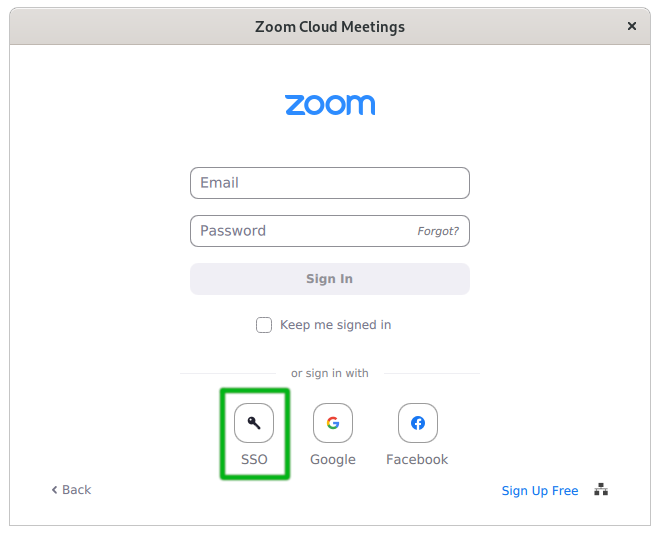
Enter dtudk in the following input field, and Continue:
A browser will open to the DTU Login page. Log in here to finish the setup. You will be asked by the browser to associate Zoom links with the installed Zoom client.