Citrix Workspace (remote.dtu.dk)
Citrix Workspace at DTU can be accessed via https://remote.dtu.dk. It is a platform that lets you access a virtual Windows desktop with a wide range of preinstalled software. It can be accessed from Windows, Linux, and macOS (as well as Android and iOS, though not covered here). It requires that the Citrix Workspace app is installed on your computer or device. Access is available to employees only.
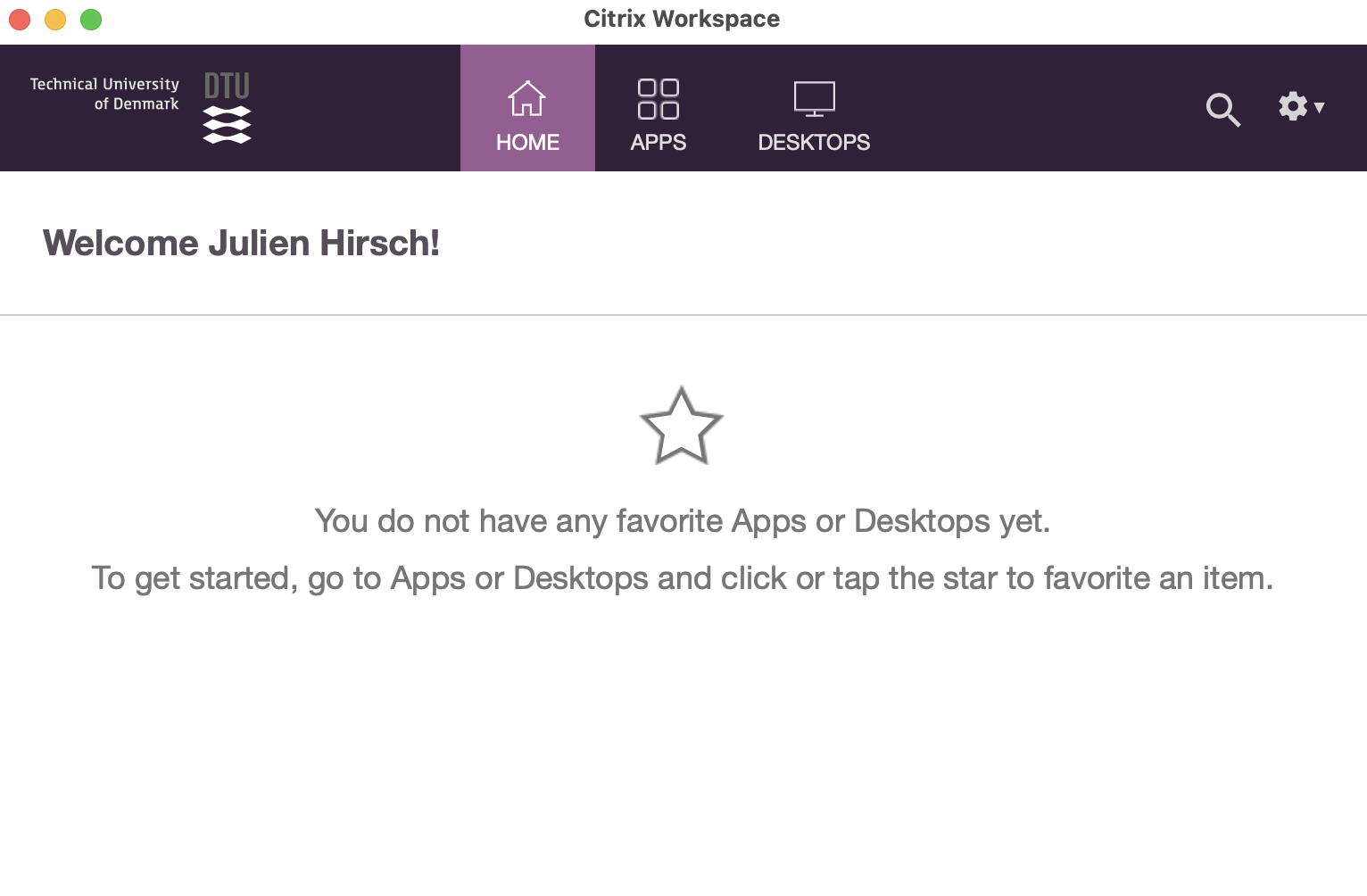
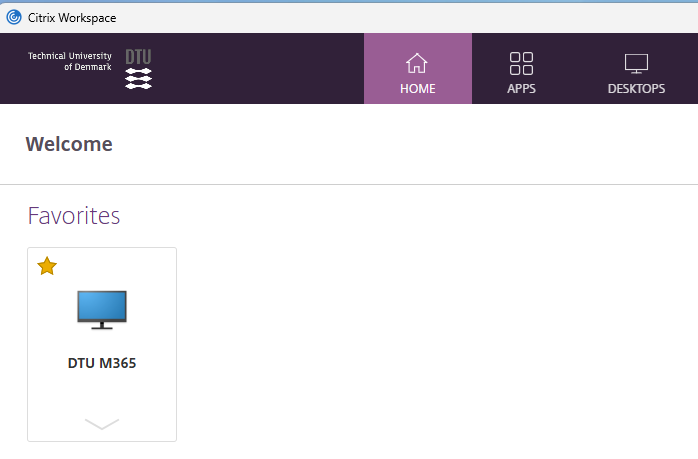
After logging in successfully, you can open a virtual desktop (DTU M365) from the menu. The virtual desktop includes a wide range of pre-installed software. Files can be copied or pasted between your local desktop and the virtual desktop.
Connecting to remote.dtu.dk from…
If you have permission to install software on your computer, you may obtain the installer as follows:
- Go to https://remote.dtu.dk and log in with your username/password and authenticate the login with MFA.
- Click “Detect Citrix Workspace app” and tick the license agreement box.
- Click the Download button and run the downloaded Citrix Workspace installation file.
- When the app is installed go back to https://remote.dtu.dk and log in again.
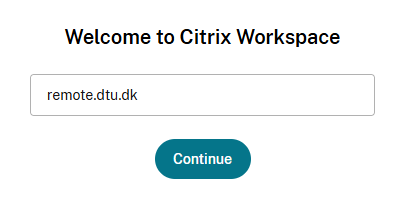
- If this is the first time opening the app, enter remote.dtu.dk in the field and click Continue.
If you are unable to install software on your computer, open DTU Software Center (available from the Desktop link and/or Start menu). Then, open Applications, search for Citrix Workspace, and click the Install button. When the app is installed, go back to https://remote.dtu.dk and log in again.