BitLocker
BitLocker is a Windows feature that encrypts data on disks. External drives can be encrypted manually using BitLocker To Go. Encryption protects your data from unauthorized access in the event of theft or loss of hardware. BitLocker is enabled by default on all Windows computers installed by IT support.
You can confirm that BitLocker is enabled by opening This PC and checking for the padlock icon on the C: drive, which indicates that it is enabled.

You can check the overall status and additional options for BitLocker under
Control Panel → “BitLocker Drive Encryption”.
BitLocker recovery screen
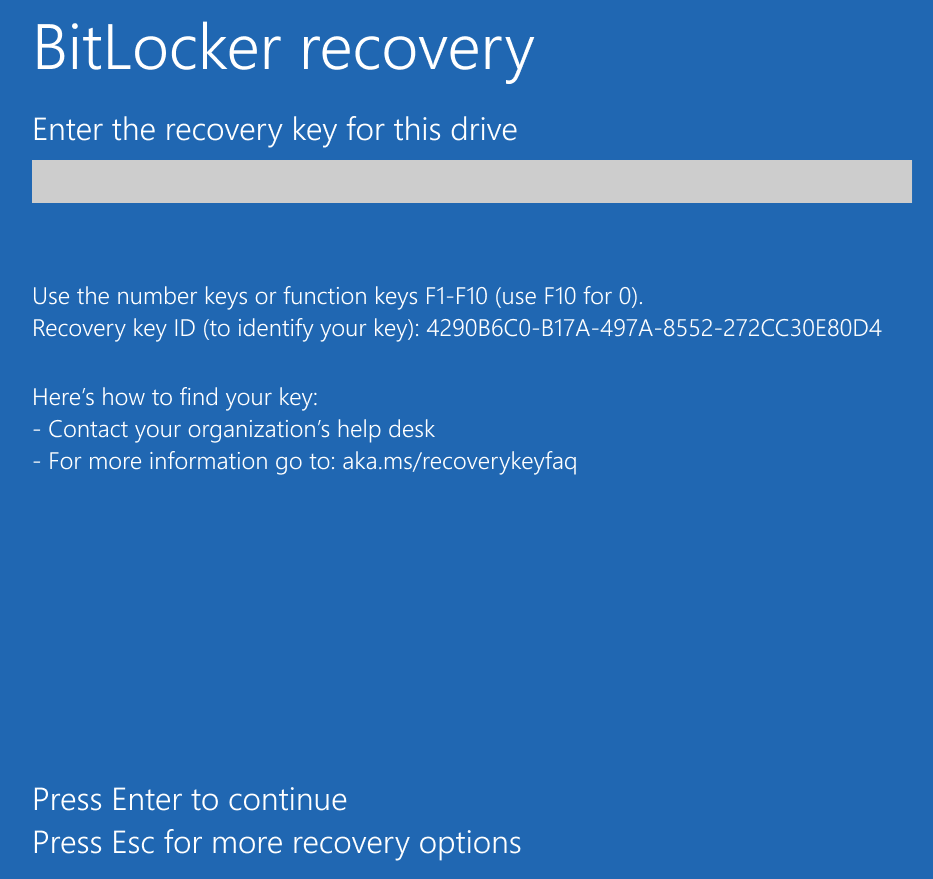
If, when starting your laptop, you are presented with the BitLocker Recovery screen and the message “Enter the recovery key for this drive” you will need to contact IT support to obtain the recovery key.
- Copy the first eight characters of the “Recovery Key ID” displayed on the screen.
- Contact DTU Compute IT support and provide the eight characters along with your username.
- IT support will retrieve and send you the 48-character recovery key, which must be entered in the text field on the “Recovery” screen to allow Windows to boot normally.
After entering the recovery key, you should be able to boot normally.
Why BitLocker Asks for a Recovery Key
There may be several reasons for this, such as hardware changes, BIOS modifications (e.g., disabling Secure Boot), motherboard replacement, malware attacks, hard drive failures, system crashes, or situations where BitLocker detects a potential threat to the data. If BitLocker is not suspended before running BIOS or firmware updates from within the operating system, this may also trigger the Recovery screen.
About BitLocker Suspension
BitLocker can be suspended if you have local administrative rights in Windows, but it should only be done when strictly necessary. Suspending BitLocker does not decrypt the data; however, it temporarily removes the protection, making the data accessible to anyone with physical access to the computer (e.g., when booting from a USB device).
BitLocker can be suspended in two ways:
1. Using the GUI:
- Go to Control Panel → BitLocker Drive Encryption
- Click “Suspend Protection”
- The suspension will be automatically removed after the next restart
2. Using PowerShell (with administrative rights):
- Open PowerShell as an administrator
- Run this command:
Suspend-BitLocker -MountPoint "C:" -RebootCount [0-15]The RebootCount parameter can be set between 0 and 15.
“0” suspends BitLocker indefinitely and requires manual resumption using:
Resume-BitLocker -MountPoint "C:"…